Inspect and adjust agent work
Choose a GitButler surface for previewing and adjusting coding-agent branch and commit history.
When your coding agent uses GitButler, it can do the version-control work for you: create branches, commit changes, move work between commits, and reshape local history. The agent usually does this through the GitButler CLI.
You may still want to preview what it created or manually adjust the branch and commit history before anything is pushed or turned into a PR. GitButler gives you three ways to inspect and adjust that state: the TUI, the CLI, and the Desktop Client GUI. Use this page to pick the surface you want. The detailed workflows live in their own docs.
GitButler TUI
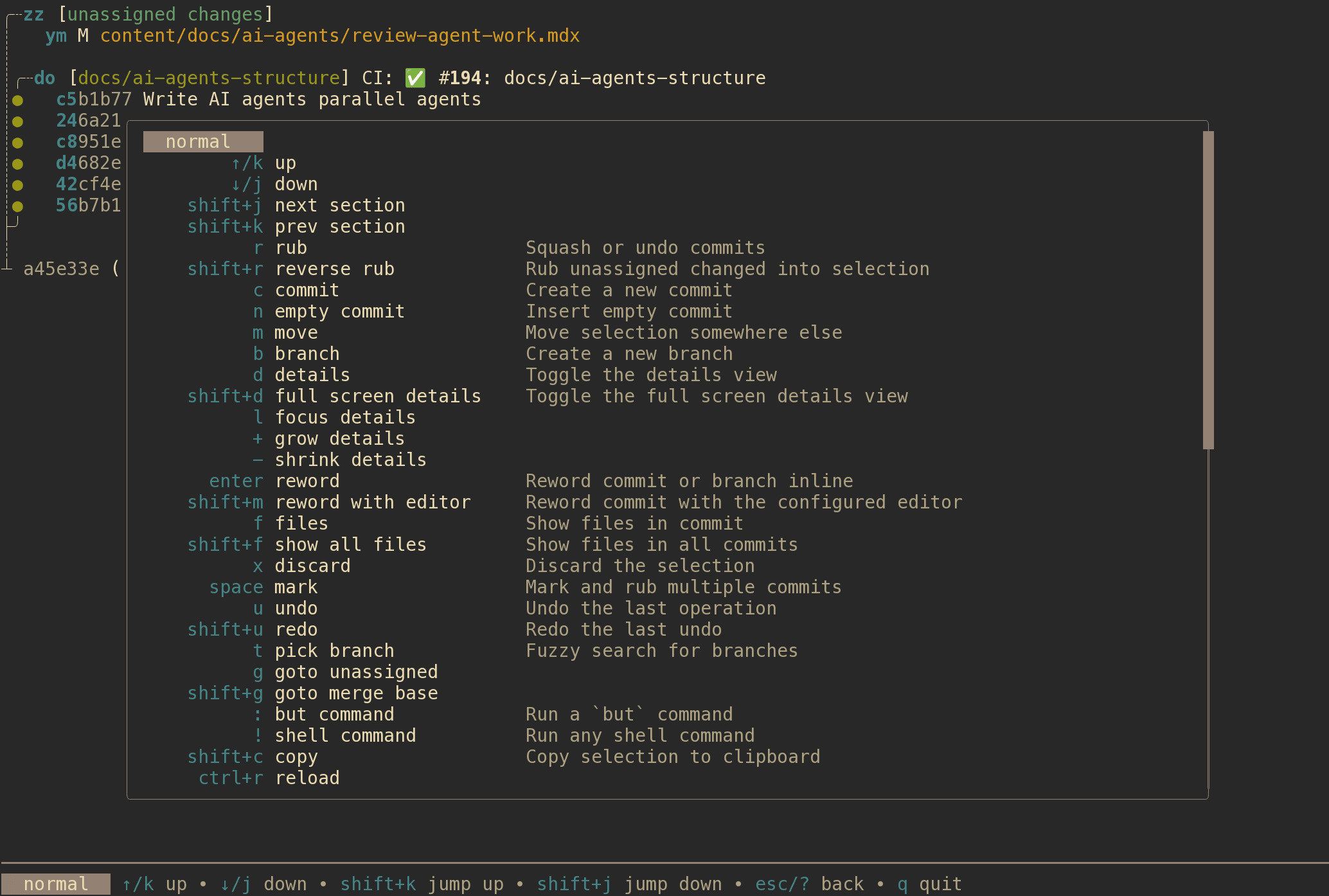
Use the TUI when you want a terminal view of the workspace without switching to the Desktop Client. It is useful for checking branch state, looking at what is on a branch or still unassigned, and making small manual adjustments to branch assignment, commit membership, or history shape.
For the full workflow and keybindings, see the TUI guide.
GitButler CLI
Use the CLI when you want exact output, scriptable commands, or the same view of the repository state that the agent uses.
For command details, start with the CLI overview.
GitButler Desktop Client
Use the Desktop Client when you want a visual overview of branches, commits, assigned changes, unassigned changes, parallel work, and stacked work. It is also the visual surface for moving changes between branches and adjusting commit history.
For details, see the Desktop Overview, Branch lanes, and Commits.
Operations history
GitButler records version-control operations so you can inspect or undo local
history edits. If a branch reorganization does not look right, inspect the
operation history before making more changes. See
Timeline, but oplog, and
but undo.
Last updated on