Code Agent Assistant
Use our Claude Code integration to assign coding agents to specific branches, even multiple parallel branches at one time
GitButler can also orchestrate your coding agents and help automatically manage, checkpoint and commit the work that they do for you.
Currently the only supported agent is Claude Code, but we are working on more agent support.
You can start a session by clicking the AI stars on a branch header, or use the shortcut for a new branch and AI session in the top right corner of the window.
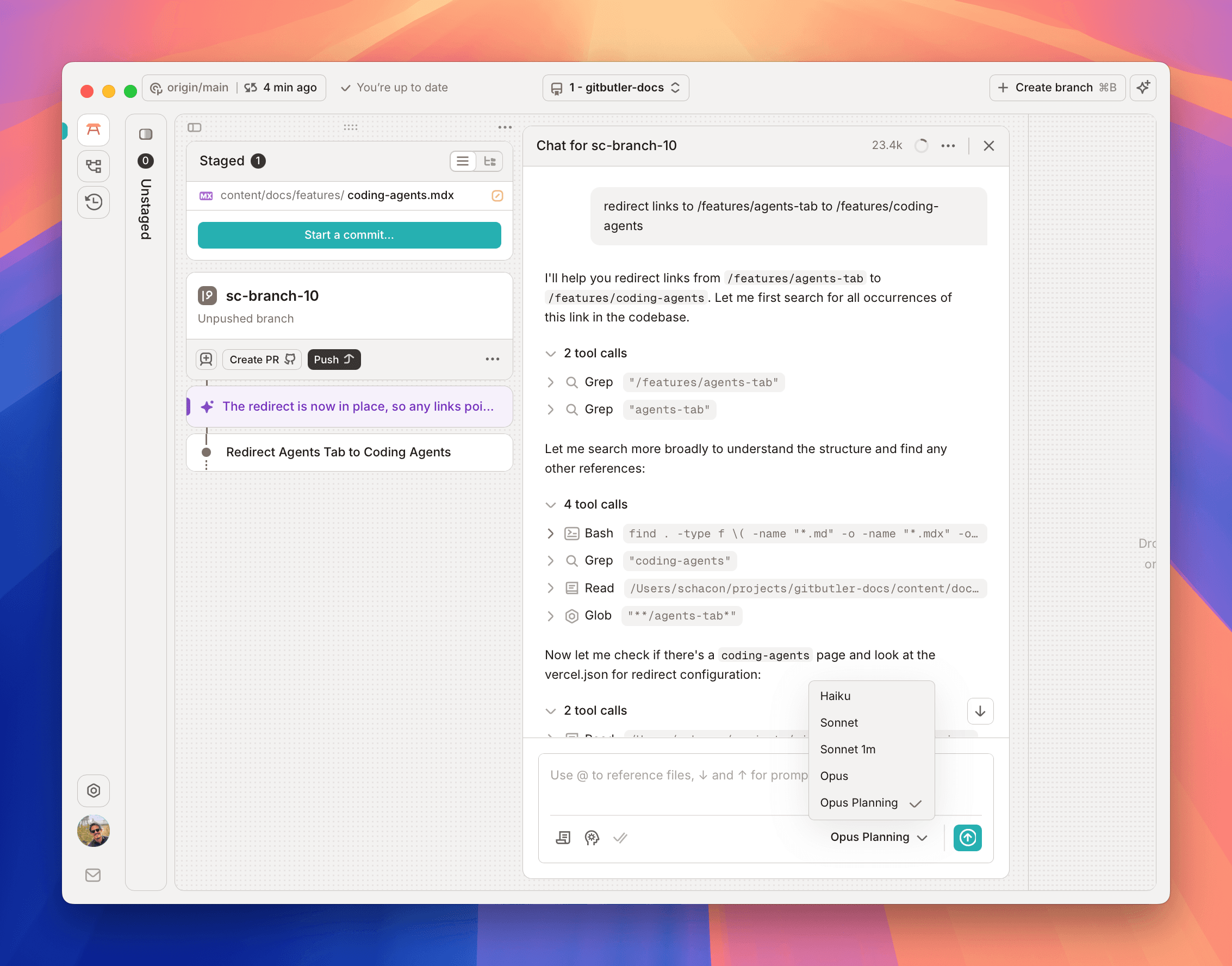
Each session is tied to a branch such that you can run them in parallel, and changes are assigned to the respective branch as long as they are mutually exclusive. Information about the branch is also added to the respective context, giving the agent knowledge of the work they contain.
Setup
There is some basic setup that may need to be done the first time, if you've never used Claude Code before.
Installing Claude Code
Before you can use the agents integration, you need to have Claude Code installed as we wrap the SDK that it provides. If we can't find the binary, you should see something like this:
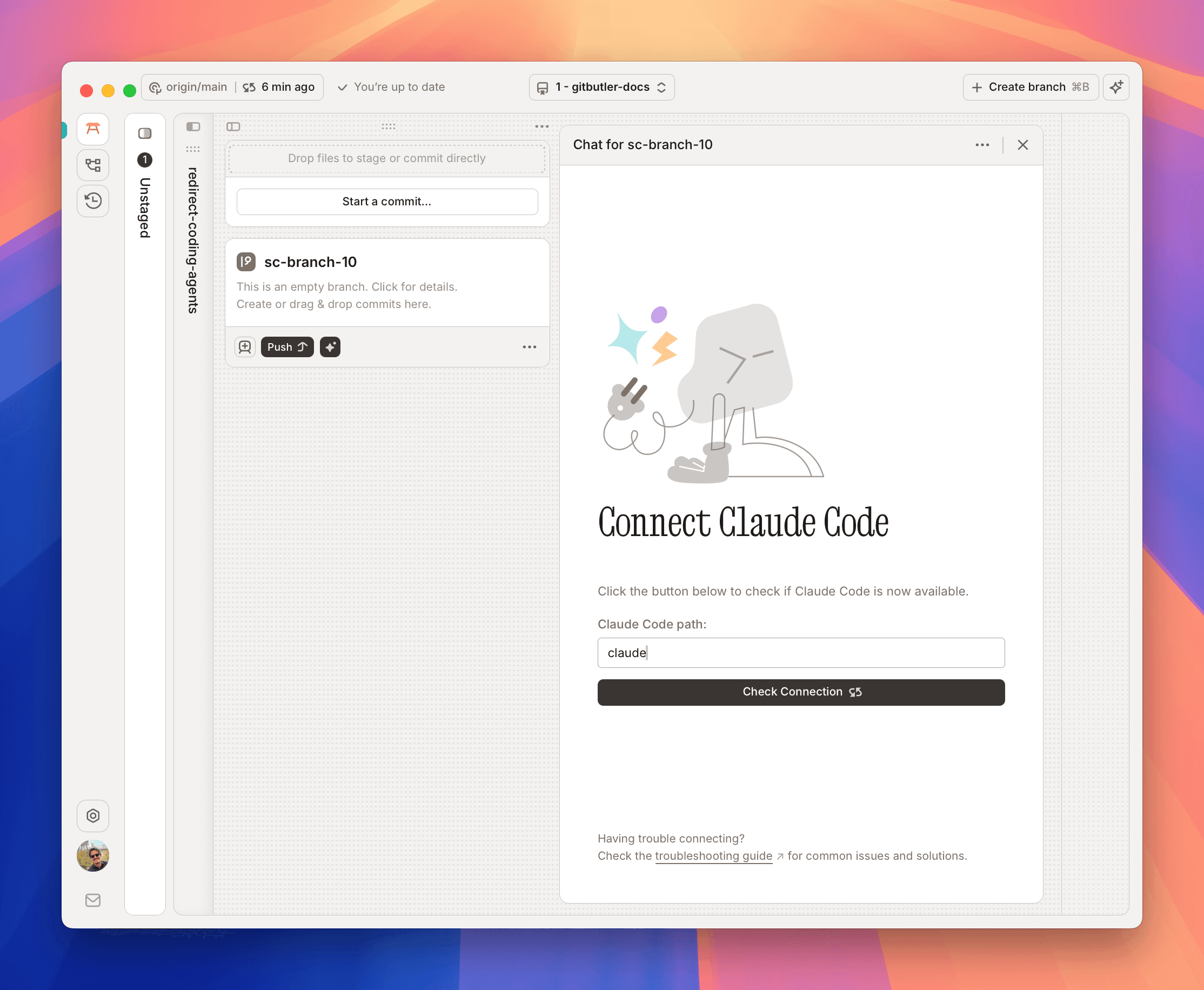
To install Claude Code, you can read through the docs here, but the simple version is to use their "Native Install" method:
You will then need to setup and login to Claude Code, which will require an Anthropic account. You can either connect it to an API key for direct billing or use one of the plans. You can learn more on the Claude Code page.
GitButler does not charge you for agent use, but Anthropic does. This goes directly through Claude Code usage, we simply help manage the agent.
Generating Code with an Agent
Once your agent is setup, you can select a branch to work on, type in a prompt and we will run that though Claude Code, same as if you ran it in the terminal.
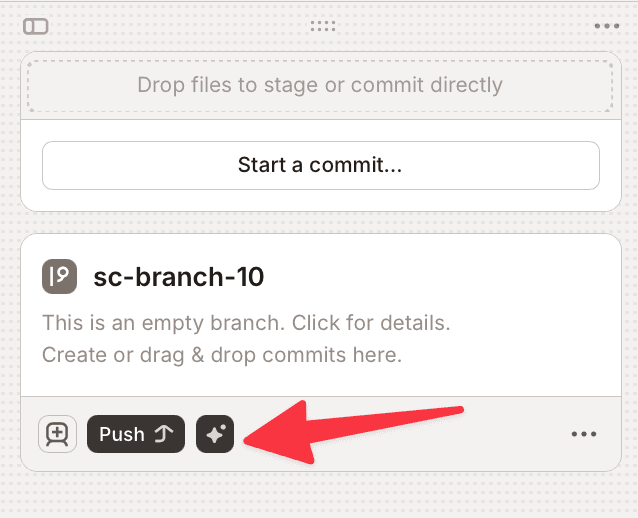
While this is still running Claude Code, running through the GitButler UI will make sure that each agent works on the branch it is attached to. You can run multiple agents at once, each committing to their attached branches.
Model Selection
There are a few different models that you can choose from for running your task. You can change your active model in the model selection dialog of the chat box.
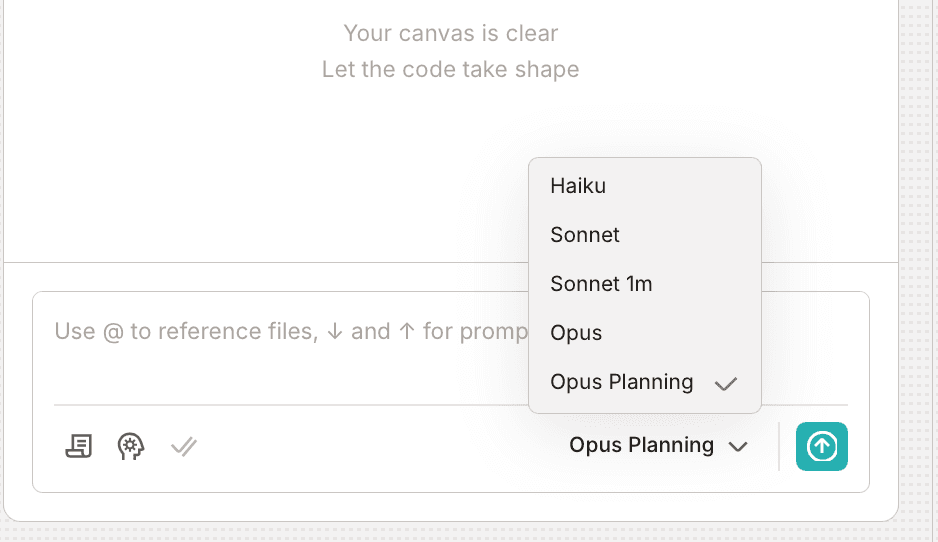
Thinking Modes
Claude Code also allows for selection of a "thinking mode". The lower modes are faster, the higher modes tend to take longer and be more expensive, but can produce better results.
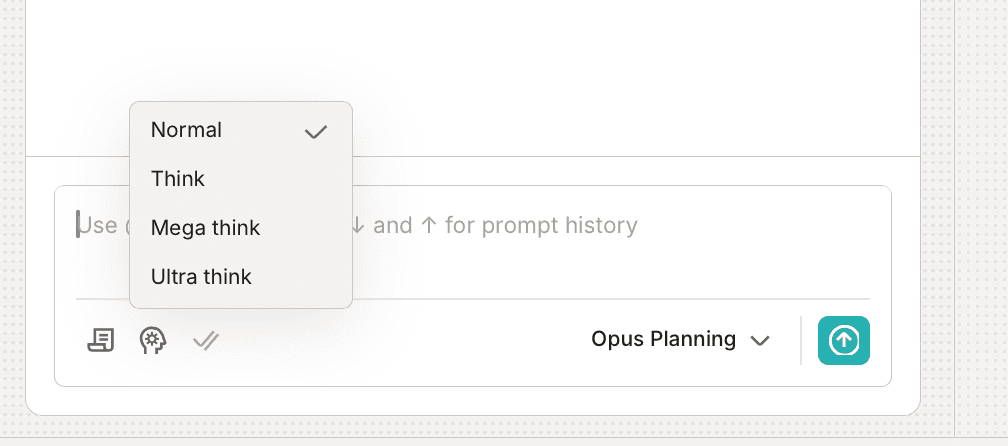
Prompt Templates
If you find that you're using similar prompts over and over, you can easily setup several prompt templates. Selecting one will seed the prompt with the contents of that template.
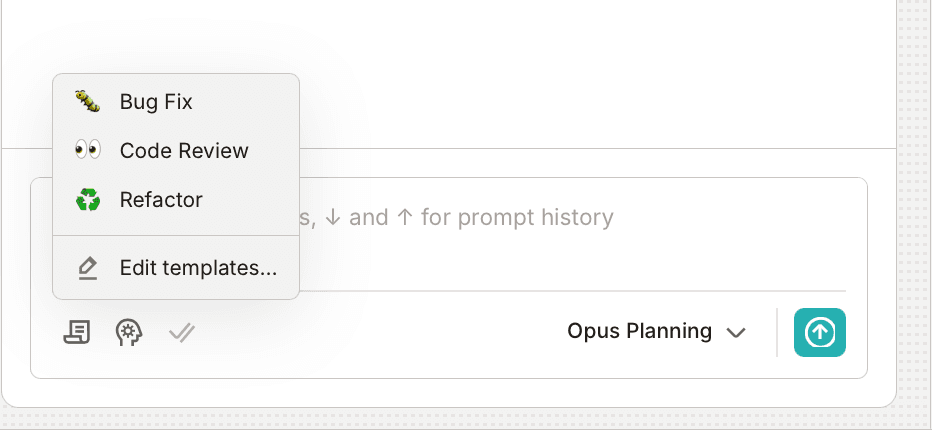
You can also edit your available templates by selecting the "Edit templates" option, which opens up our JSON file in your editor of choice. The templates look something like this:
Context Clearing
After a while, your context in a single branch can get long. If you no longer need all the context but want to keep your agent working on the same branch, you can clear it with the "Clear Context" button in the context menu.
Last updated on